Everything you need to work with WeSign, in one place — full documentation, sample files, training videos, release notes and a direct line to our support team.
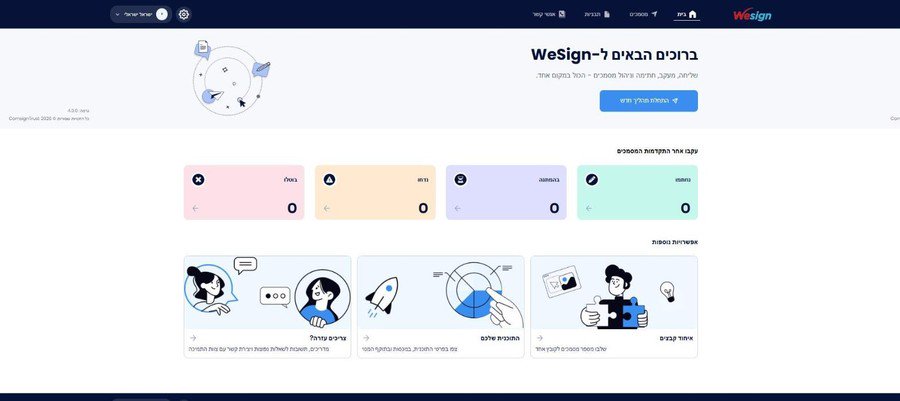
A redesign across every screen, an improved field-placement editor and full mobile support — every process you know stayed where it was, only faster and easier to use.
An additional channel alongside email and SMS, for fast signing from a phone.
Precise field placement in the document and a faster, clearer recipient assignment flow.
Send, track and sign documents from any device without giving up a single capability.
Centralised enterprise authentication, with no separate passwords to manage.
Adapt the logo, colours and content of the emails your recipients receive.
Instructions reach the recipient in the message body, before the document is opened.
All WeSign documentation — by role and by need
The complete guide to the new interface: login, self-sign, signature requests, templates, contacts, reports and settings.
API documentation for embedding WeSign in enterprise systems: authentication, sending, statuses and callbacks.
What changed in the API between versions, what stays backward compatible and what needs updating on your side.
The Comda Group terms of use and end-user licence agreement governing the use of WeSign.
Sample files and helper tools for day-to-day work
An Excel template for bulk-importing contacts. Fill in the columns as shown and upload from the Contacts screen.
A sample Word document with embedded automatic fields, for automated assign-and-send workflows.
The companion XML file defining field names and positions for automatic embedding in the document.
The desktop component required for smart-card signing. Install once on every signing workstation.
An Excel template for importing a recipient list in the Distribution process — one document to many signers.
The cumulative release-notes document covering every change and fix across all versions since launch.
Short walkthroughs of the new interface — more will be added here soon
A tour of the home screen, the menus and the main processes in 4.0.0.
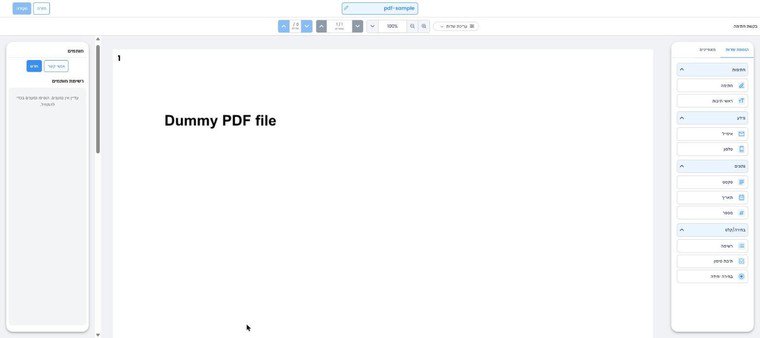
From uploading the file, through placing fields and assigning recipients, to sending and tracking.
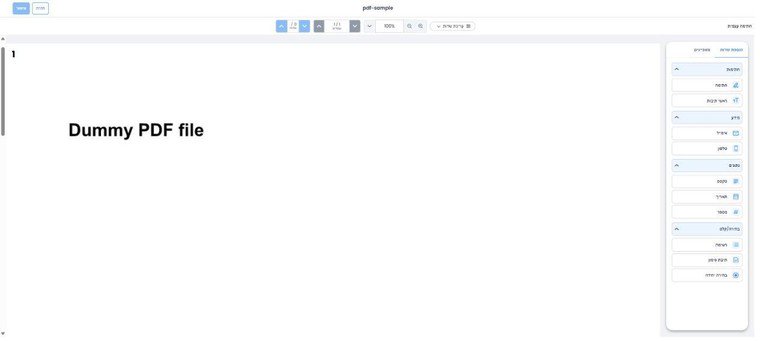
Field placement, field properties, required vs optional fields and duplicating signatures.

Building a reusable template, importing contacts and sending automatically to a list.

Building a reusable signing template: placing fields in the document and assigning them to recipients for repeated sending.
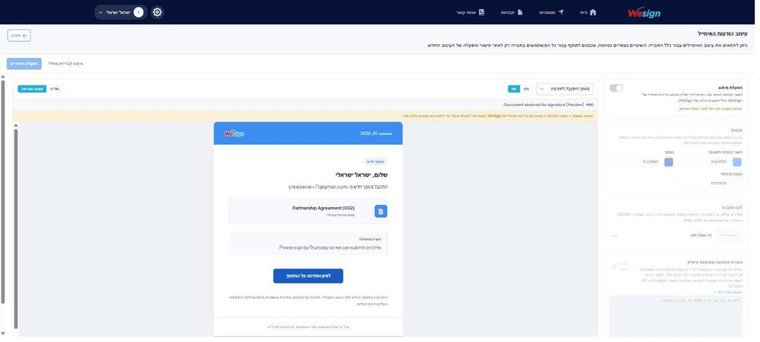
Adapting outgoing emails to your organisation: logo, colours, texts and notes.
Answers to the questions we hear most often
In most cases the message landed in spam or was blocked by the organisation's mail server. Work through this order:
Yes. WeSign implements electronic signatures under Israel's Electronic Signature Law, 5761-2001, and is operated by ComsignTrust — a recognised certification authority in Israel. The system also supports certified electronic signatures using a smart card, the highest level recognised by the law.
Every process keeps a full delivery tracking report — when the document was sent, viewed and signed, the viewer's IP address, device type and browser. That report is the legal record accompanying the signature.
These are the formats and sizes supported under the system's default settings:*
Files sent for signature — Word documents and images alike — are converted to PDF during the sending process. Make sure the source document is closed for editing before uploading.
* The sizes listed are the system defaults. Some organisations are configured with different limits — contact support to confirm the limits that apply to your account.
There is no need to cancel and start over. Open the Documents screen, open the relevant document, and in the recipient's row choose Replace signer from the actions menu. Enter the new signer's details — the previous link is revoked and a fresh request is sent to the updated recipient. Fields assigned to the original signer carry over automatically.
Note: phone numbers are accepted in several formats (for example 05X-XXXXXXX or 05XXXXXXXX), hyphen included. Rows with an invalid email address are flagged and not imported.
In the review step before sending you can schedule automatic reminders for recipients who have not signed yet. The minimum interval between reminders is one day. You can also send a manual reminder at any point from the Documents screen, in the recipient's actions menu.
Smart identification adds a verification step before the recipient may view and sign the document. You can choose OTP (a one-time code by SMS), a pre-agreed password, or biometric face recognition.
It is recommended for sensitive documents or ones containing personal data. Failed attempts are limited to 3, after which a new request must be sent.
On the login screen click "Forgot password" and enter the email address the user was created with — a reset link will be sent to you. An existing user can also change their password at any time under Settings → Change password.
A company administrator can reset passwords for users in the organisation under Settings → User management. If the user is locked out or the email never arrives, contact support.
Every process, permission and existing document stays exactly as it is — the change is in the design and the experience: a new home screen with status tracking, a more precise field-placement editor, full mobile support, and additions such as WhatsApp delivery and custom email design.
No data migration or reinstallation is required. We recommend reviewing the 4.0.0 user guide before the switch and sharing it with users in your organisation.
No results. Try a different term, or contact us directly.
WeSign is ComsignTrust's digital signature system — a portal that lets organisations send documents for signature, track the process in real time and receive a legally binding signed document back, with no printing, scanning or postage.
The system supports self-signing, signature requests to multiple recipients, reusable templates, bulk distribution and online signing over screen sharing. Recipients can be verified by OTP, password or face recognition, and can sign with a smart card for a certified signature. WeSign is available in the cloud and as an on-premise installation, and integrates with enterprise systems through a full API.
ComsignTrust is part of the Comda Information Security group, developing and deploying information-security solutions since 1985.
Didn't find your answer? Leave your details and we'll get back to you, or reach us directly
Fields marked with an asterisk are required.
Or dial *8770 in Israel · Sun–Thu, 09:00–17:00 IST
Attach a screenshot and document ID
Include in your request: your username and company in the system, the document name or process number, a screenshot of the error, and the browser and operating system you were using. On-Prem customers — please add your installed system version.
Log in to the system, or read the user guide to get to know the new interface.